




Quick answer: Use a whoosh transition when a visible movement needs an audible accent. Choose a sound that suits the speed and weight of the movement, align its main sweep with the action, then trim the tail so it leaves room for the next shot. Keep ordinary cuts quiet unless the sound adds a clear sense of movement or emphasis.
A fast edit does not need a sound on every cut. One well placed sweep can make a camera move feel deliberate. Repeating that sweep across every shot can make a simple sequence feel busy.
When does a whoosh transition help a short video?
A whoosh helps when it reinforces motion the viewer can already see, such as a whip pan, a passing object or a title sliding into place. Start with the picture and decide what the sound should draw attention to.
| Moment in the edit | Sound to audition | When to leave it out |
|---|---|---|
| A fast camera pan into the next shot | A brief sweep that follows the burst of motion | The pan already has useful location sound |
| A small label sliding onto screen | A light, short swish | The label is secondary to the speaker |
| A large object passing close to camera | A fuller sweep with enough weight for the object | A recorded movement sound fits better |
| A simple cut between two static shots | Try the cut without an added effect first | There is no movement or reveal to emphasise |
If you are still choosing the visual transition, our Premiere Pro transition guide covers the picture side. Finish that decision before shaping a sound around it.
Which part of a whoosh should line up with the movement?
Line up the part that sounds like the main pass with the strongest moment of visible motion. That point is often somewhere inside the audio clip, rather than at its beginning.
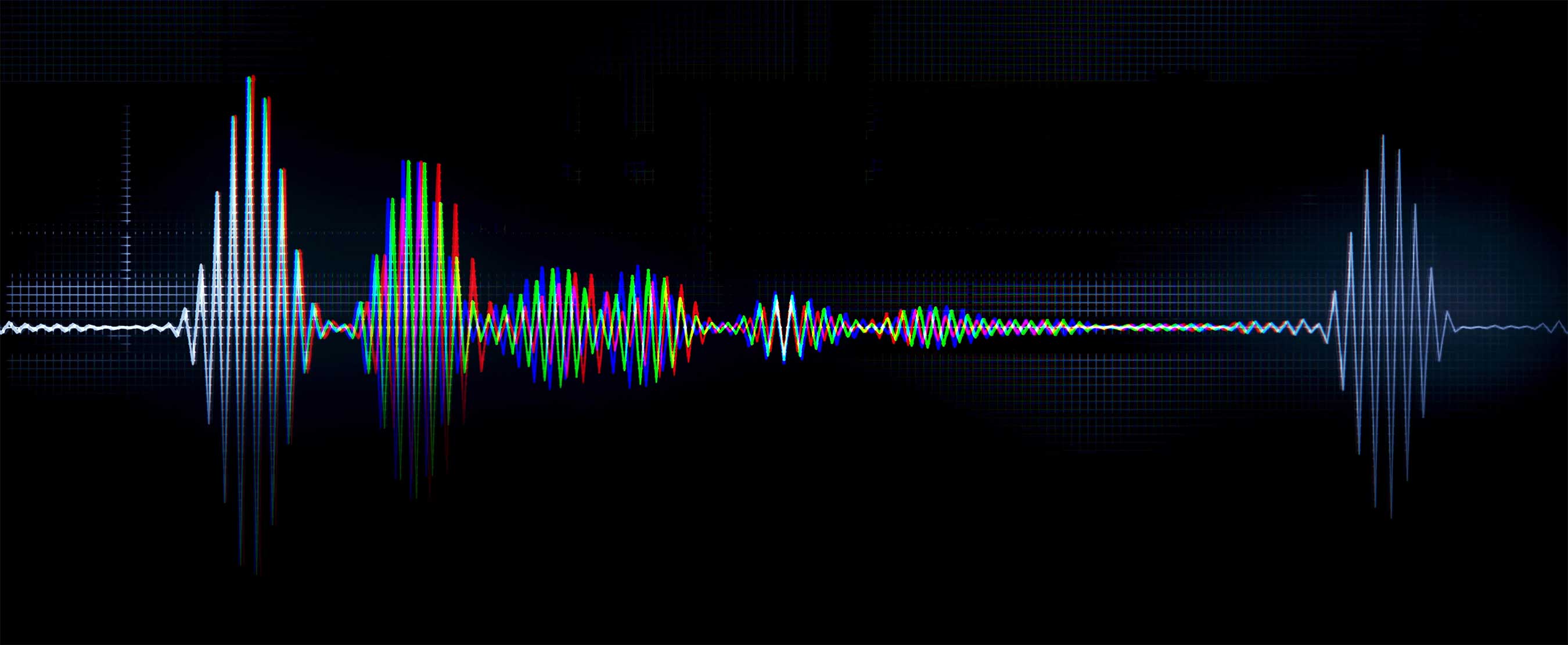
Listen for three parts: the approach, the main sweep and the tail. Some whooshes have all three clearly; others are little more than a short burst. Use the waveform to find a promising area, but listen to locate the perceived pass. The tallest waveform peak is not automatically the best sync point.

For a whip pan, audition the sweep against the fastest blurred part of the move. For a sliding graphic, try the movement across the frame before assuming the sound should peak when the graphic stops. A separate arrival accent may be unnecessary.
How do you time a whoosh without guessing?
Mark the visual action first, then move the sound around that reference while replaying the whole transition.
- Play the cut without the whoosh and identify the moment you want to emphasise. Put a timeline marker there if your editor supports markers.
- Place one candidate whoosh on a separate audio track. Listen to its approach, sweep and decay.
- Move the audio so its main pass feels connected to the marked movement. Avoid snapping the file start to the cut by habit.
- Compare a slightly earlier placement with a slightly later one. Replay from before the transition, at normal speed, for each version.
- Keep the placement that feels attached to the picture. If neither works, try another sound before forcing the timing.
There is no universal number of frames to offset a whoosh. A sound with a long approach needs a different position from a sharp swish, and the movement itself may reach its fastest point before or after the cut.
If you need the import and timeline basics first, follow our guide to adding sound effects in Premiere Pro.
How do you choose the right length and weight?
Choose a whoosh that fits the movement before trying to repair an unsuitable sound with processing. A small text slide rarely needs the same weight as a dramatic camera sweep.
- For a quick gesture: audition short sounds with little lingering decay.
- For a slower reveal: try a gentler build that follows the reveal instead of rushing past it.
- For a dense musical passage: compare the whoosh in the mix. A huge sound in solo may add nothing useful beside the music.
- For repeated movements: use a small, coherent selection. Change the effect when the movement changes, rather than randomising every cut.
If a sound is much too long, choose a shorter recording first. Speed changes can alter its texture and, depending on the settings, its pitch. Judge that change as a creative choice rather than an automatic fix.
What should you do with a tail that lasts too long?
Shorten or fade the tail when it distracts from the next shot, while preserving enough decay for the effect to finish naturally.
Listen past the cut into the following moment. A whoosh may fit the transition but keep hissing under a quiet reveal. Trim carefully and add a fade if the new ending sounds abrupt.
In current Premiere versions, expand the audio track vertically and drag the clip’s visual fade handle to shape an ending. Adobe’s audio fade instructions explain these controls. Adjust the fade while listening so it does not remove the useful sweep.
When speech is the main problem, use our separate guide to keeping dialogue clear under cinematic sound effects. It covers volume changes around spoken phrases in more detail.
How can you practise using fewer whooshes?
Build a three shot sequence and give only one transition an audible accent. This makes the reason for that accent easier to judge.
- Choose a static opening shot, a moving middle shot and a quieter final shot.
- Make the picture edit work without added transition sounds.
- Add a whoosh only where the strongest movement occurs.
- Compare the sequence with that effect muted and enabled, keeping playback volume unchanged.
- Try adding a second whoosh, then remove it again. Keep it only if it contributes something the first sound does not.
This is a practice exercise, not a claim that one effect suits every three shot edit. The aim is to hear the difference between a useful accent and a repeated habit.
Where can you find whooshes to try?
Start with a few sounds you can audition against your own edit. Our free whoosh and transition sound effects page is a useful starting point, with an email download form.
For a wider selection, Division includes whooshes alongside risers, hits and atmospheric sounds in WAV and MP3 formats. The official preview below introduces the library. It is a product preview, not a demonstration of the practice edit above.
Explore Division sound effects
Related questions about whoosh transitions
Should every cut have a whoosh?
No. Use a whoosh when it supports movement, a reveal or a deliberate change of emphasis. Ordinary cuts can work perfectly well with the existing music, speech or location sound.
Should the whoosh start exactly on the cut?
Only if that placement suits the sound and picture. Many whooshes need to begin earlier so their main sweep reaches the action at the right moment.
Does a whoosh need to hit a music beat?
No. A beat can be a useful reference when the picture is already cut to music, but the whoosh should still feel connected to the visible movement. Avoid adding another strong accent when the music already supplies one.
Can a whoosh work with a hard cut?
Yes, if the cut implies a fast move or creates an intentional reveal. A whoosh is less convincing when it suggests movement that the viewer cannot connect to either shot.
Should you pan a whoosh from left to right?
You can audition panning when it supports a clear direction of travel. Keep the effect useful without relying entirely on stereo movement, and check the finished mix on the playback devices your audience is likely to use.
Why does the same whoosh feel wrong after changing the edit?
The visual timing may have changed while the sound’s main pass stayed in place. Recheck the sync point, duration and tail after moving cuts or adjusting the speed of the picture.


